I’m starting to use shared components, and I’m facing a situation that could be usual for some of you.
I created a component that reads files from a Google Cloud Storage bucket, receives an external variable, and expects data from a table.
I shared the component, and I realized that I needed to make a small change to the Excel Reader node.
Locally, the component receives the GCS connection, the variable, and a sample of data to be changed and tested. However, I can’t change it because it is a linked component.
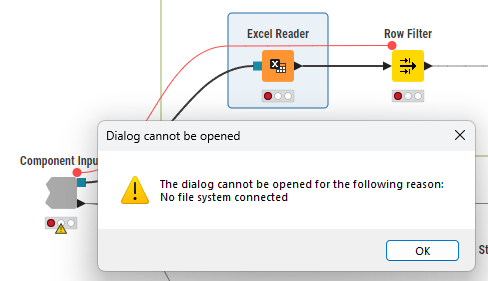
If I open the shared component in the hub, I am unable to open the Excel Reader node because I don’t have a GCS connection, and I can’t change its configuration.
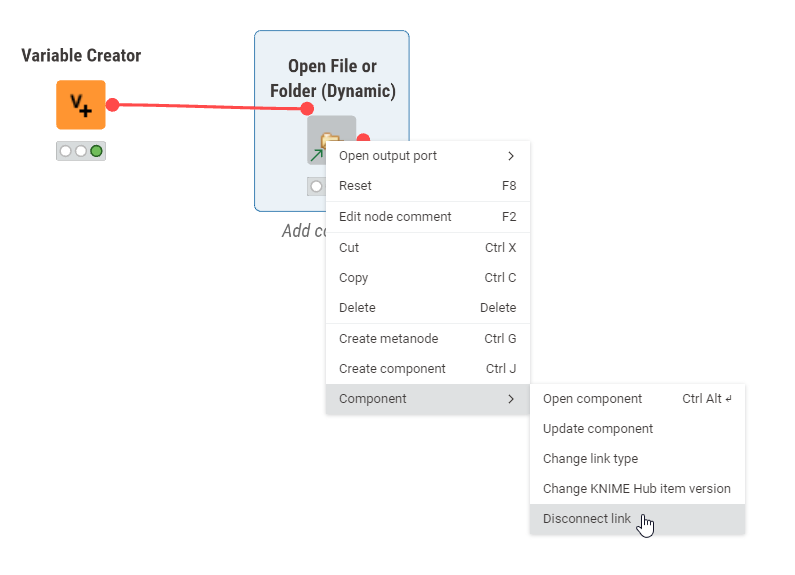
Hi @EmanuelTavares if I understand your situation correctly, what you need to do is first unlink the component. You can do this by right clicking on the component in your workflow and selecting unlink.
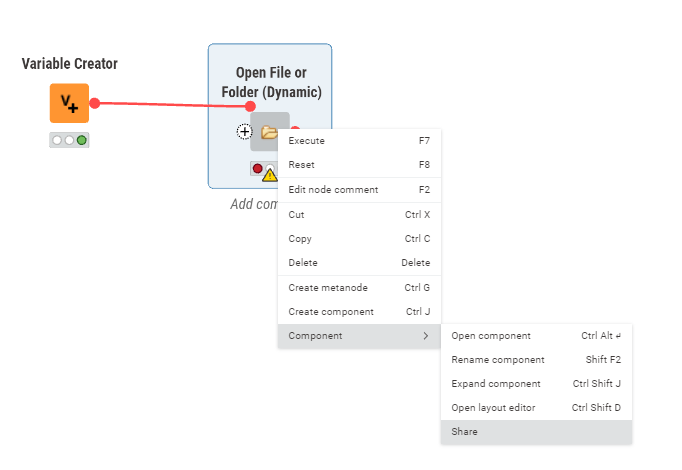
After this you can modify your local copy and assuming you then want to share the new version (with the changes), you simply share it again to the same place on your hub that you shared it to before.
Before sharing though you may wish to create a new version by logging into the hub and on the component’s page you can click on the versions button and create a new version.
Then, after you’ve shared the updated component you can easily revert to the previous version should you discover that you need to.
Once you’ve reshared the component anybody who has downloaded the earlier version will be able to update to the latest one.
That is my doubt, I’m new using shared components. Do you mean that when I relink all workflows that use the component, they will not lose the connection? I thought that the link was based on my local copy.
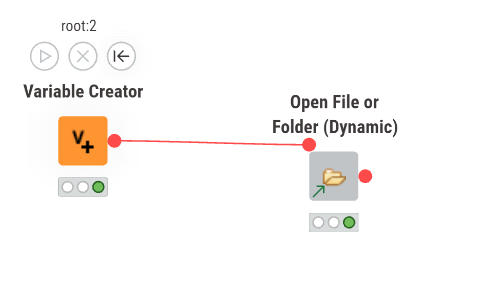
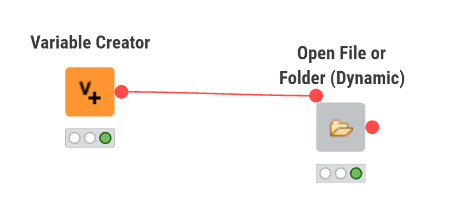
I tried to do it, but when I disconnected the component, my local copy disappeared, only the cloud remained. Probably I did it in the wrong way.
I’m in a critical project and shared components will be important.
After I’ve modified the component, and I’m happy it works, I can then share it again and when prompted, I would tell KNIME to save it back to the same hub space where it was originally.
Now I don’t have to go and “relink” workflows that use this component, as they should already be linked. i.e. Any other workflows should remain linked. You only unlink a single copy of the component where you are making the change.
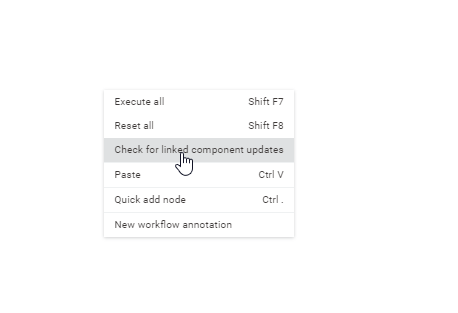
Once you have re-shared the component, other workflows that used the original version of the component can be updated (KNIME normally checks on opening if there are any updates to components) or you can manually ask KNIME to check for updates on a workflow (the exact mechanism varies from version to version)