DB Table Structure Creator - HOW DO I CHANGE THE COLUMN TYPE SETTINGS?

Since the switch to the new user interface, more and more old dialog-driven nodes are being removed and integrated into the right-hand area. Unfortunately, this is not always useful.

I am currently creating an ETL process to build a database from data in a multi-tab Excel spreadsheet.

In the older version, there was the „Create Table node“, which was very logically structured. Changing types and defining the key was quick and easy.
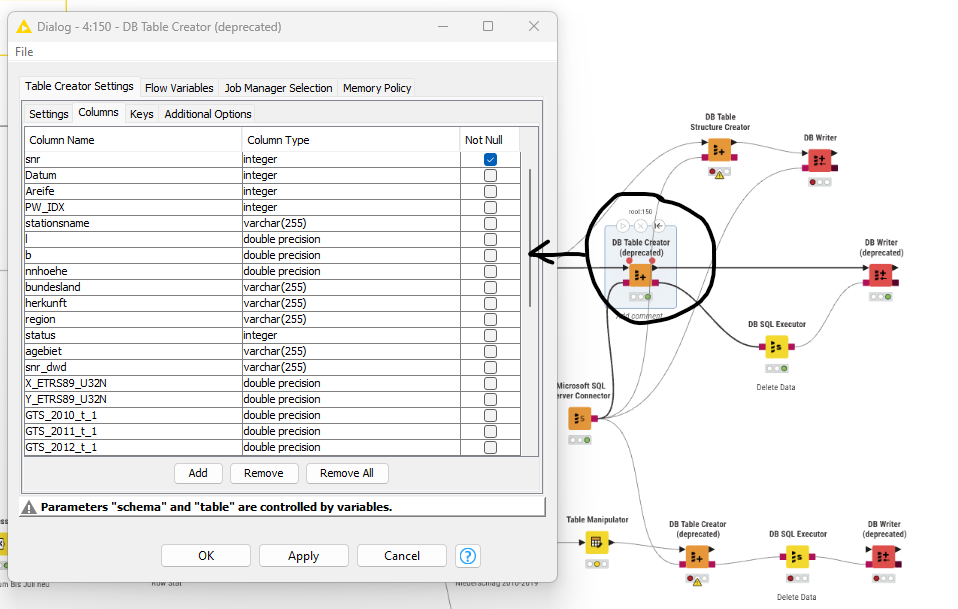
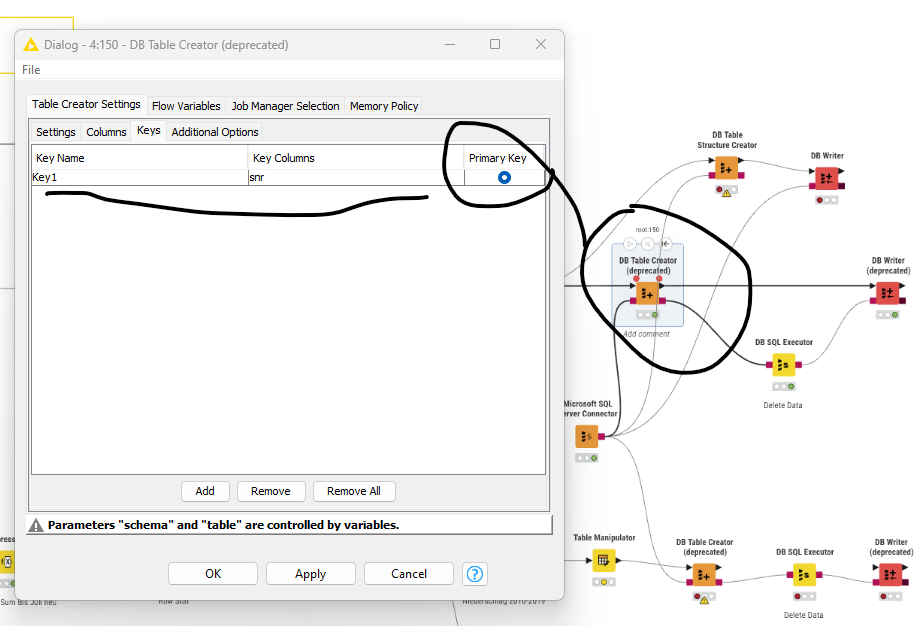
In the current version, I only find the Node DB Table Structure Creator. Where and how do I change the parameters Type, Size, etc., and Key for the fields within this node? I’m completely lost with this node.
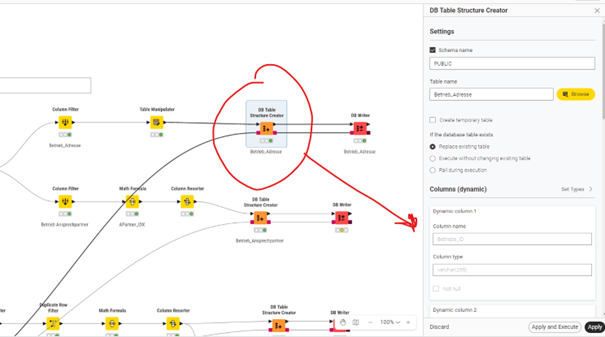
I looked at Set Type, but what is it? It was so well implemented in the old dialog. I’m speechless. The wasted space and the awful handling are just ridiculous. I also don’t understand the difference between “Name-based SQL type mapping” and “KNIME-Based SQL type mapping”.

Sorry, I just want to change/adjust the type of some columns. For example, from VARCHAR(255) to CHAR(5), or Longint to int. I don’t understand the purpose of this; what was the reasoning behind it?

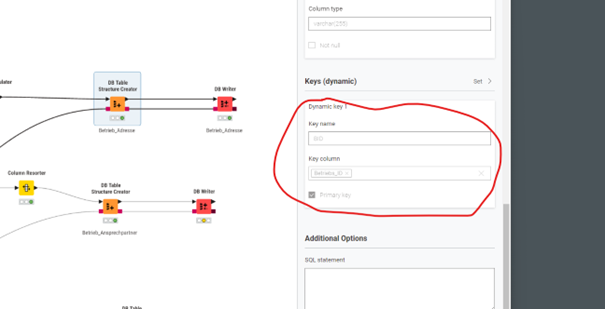
Setting the primary key seems to work this way. The fact that you can’t even select the column(s) is really bad. IS THERE ANOTHER WAY? Like before!

What if the primary key needs to be created from multiple columns?
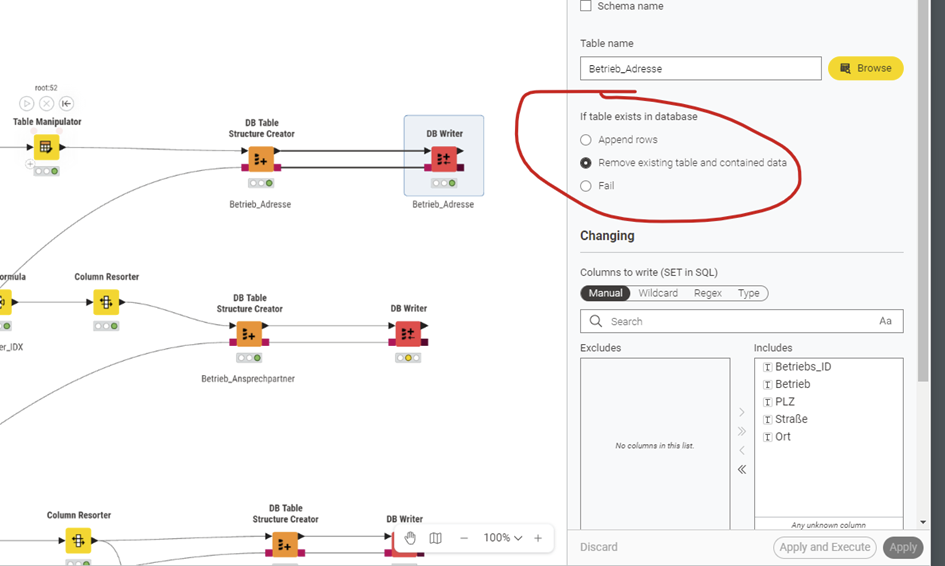
If I want to write data to the table, I can only use the following settings with the DB Writer.

Append Rows:

I can’t use this

I need a Trancate Table beforehand

because:

Remove existing table and containing data:

then all settings from the Creator are lost, since the DB Writer recreates the table but doesn’t take the settings from the “DB Table Structure Creator” into account.
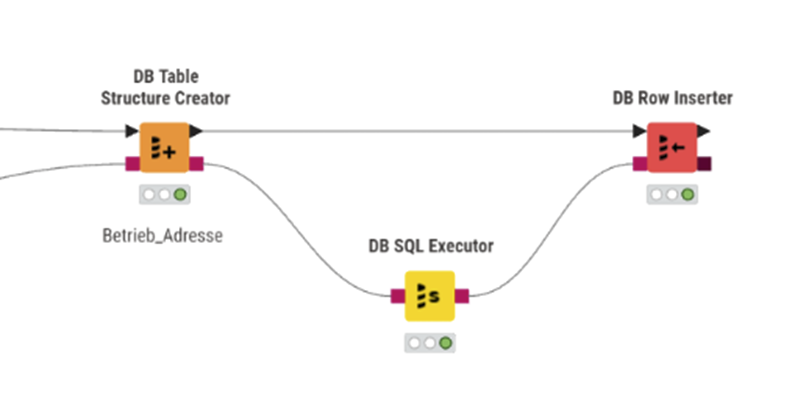
I cobbled together an alternative solution, but I’m not happy with it. The DB SQL Executor is performing a truncate operation.
SO: HOW DO I CHANGE THE COLUMN TYPE SETTINGS?

Text translated with Google, hopefully somewhat understandable.

Thanks for the tips and best regards,
Patrik
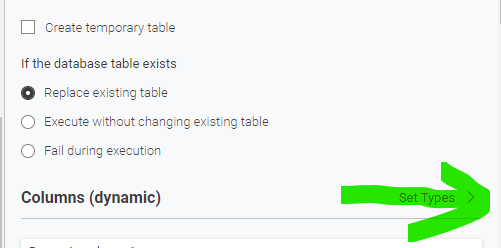
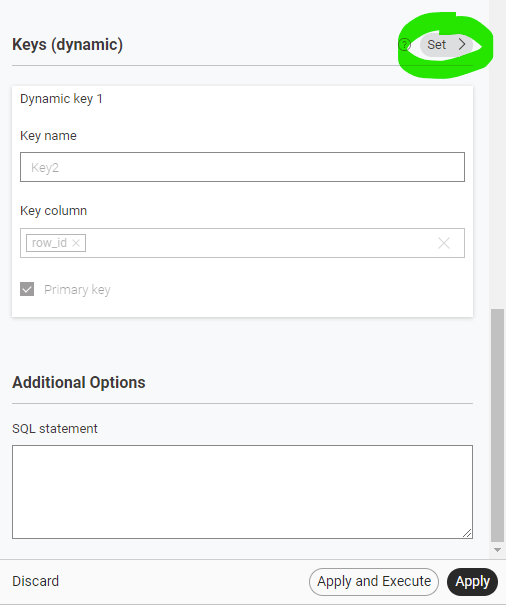
You have the settings in additional tabs that can be found further down:

There also are the settings for the Primary Keys. This is also where you can add additional SQL commands.

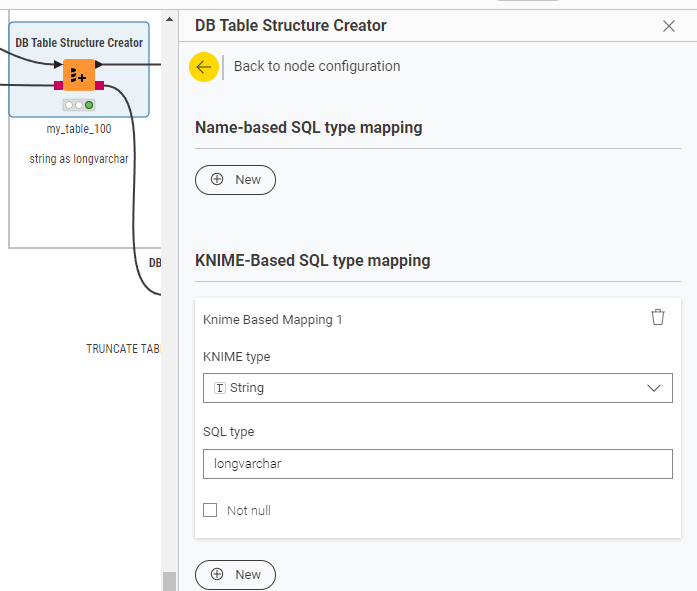
The difference is that you can use name patters of your columns within the database to assign SQL types. Or you can use the type provided by KNIME to decide they all should get a specific format.

In this sample case I wanted all strings to have enough space in a local H2 database, so I told KNIME to convert them to longvarchar instead of the standard varchar.

Primary Keys consisting of multiple columns I think always had to be done by code like this:

ALTER TABLE "PUBLIC"."my_table_001"
ALTER COLUMN "row_id" SET NOT NULL;

ALTER TABLE "PUBLIC"."my_table_001"
ALTER COLUMN "Counter" SET NOT NULL;

ALTER TABLE "PUBLIC"."my_table_001"
DROP CONSTRAINT "Key1" IF EXISTS;

ALTER TABLE "PUBLIC"."my_table_001"
ADD CONSTRAINT "Key1"
PRIMARY KEY ("row_id", "Counter");

I think the nodes are still evolving. I am not 100% sure why the individual settings of types are greyed out (sometimes?). The overall logic behind the new UI is to enable KNIME to be run in the browser without a fixed installation. That is why they all get ‘flattened’ - I think the process is not yet finished and some quirks are still there that hopefully will get fixed over the coming months.

Maybe you can toy around and familiarize yourself with the (new) handling.

3 Likes

Hi mlaber71,

Thanks for the info. It would be good to know, where to enter something like that, so the developers are aware of it.

It might be fine for some tasks. But to implement it so horribly as a new feature is really disappointing.

Then the developers should just create two nodes: the old one and the new one.

If the type needs to be changed for 10 out of 30 fields, it’s no fun at all.

Annoying, but I’ll just change the field types in the database afterward.

Best regards Patrik

There are both nodes and the old one is still fully functional. The Deprecation just signals that there is a newer one where the focus will be. With KNIME older nodes and workflows will still be working.

Hi mlaber71,

That sounds good. I’ll try using the old node from my current workstation via the hub tomorrow at the office.

I have KNIME 5.9 installed there. The old node isn’t available in that version.

I’m curious to see if it works.

Thanks, Patrik

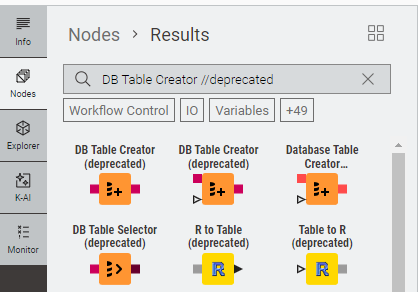
Well actually it is. If you search for the node and put “//deprecated” at the end the older nodes will magically appear. Also, you can always load a workflow that still has the old node (like the one I sent) and just copy it to a new workflow.

DB Table Creator //deprecated

5 Likes

Hi mlaber71,

Wow, when you search like that //deprecated, you find all sorts of things.

Thanks for the tips, I’m just a user and everything needs to happen pretty quickly.

Patrik

2 Likes

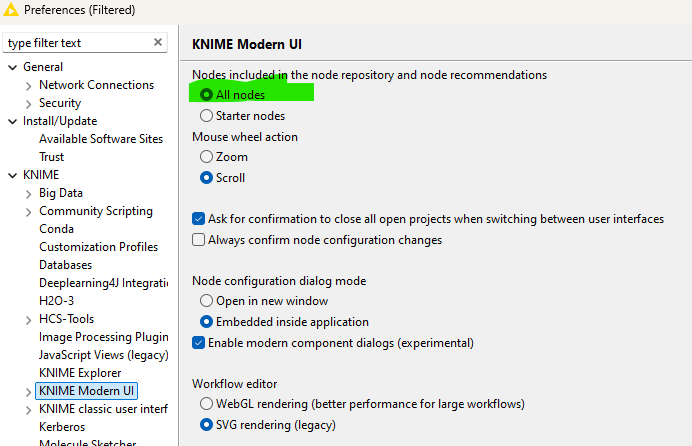
@PatrikS well since we are at it. You might also want to activate all nodes appearing in the node repository. KNIME is sometimes struggling to present a clean and easy surface also for beginners and offer all the options for seasoned users.

1 Like

The new nodes are poorly designed. I can’t understand why someone at KNIME doesn’t fix this process of releasing new nodes with such wasted space, a type style that’s too light and less features.