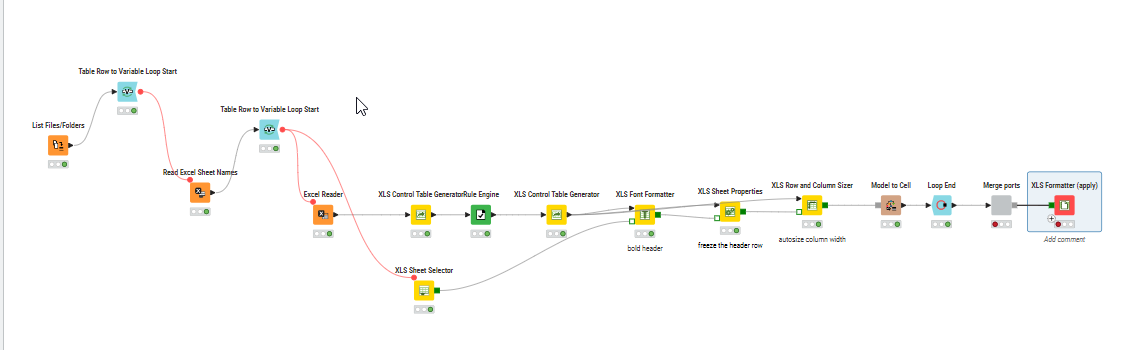
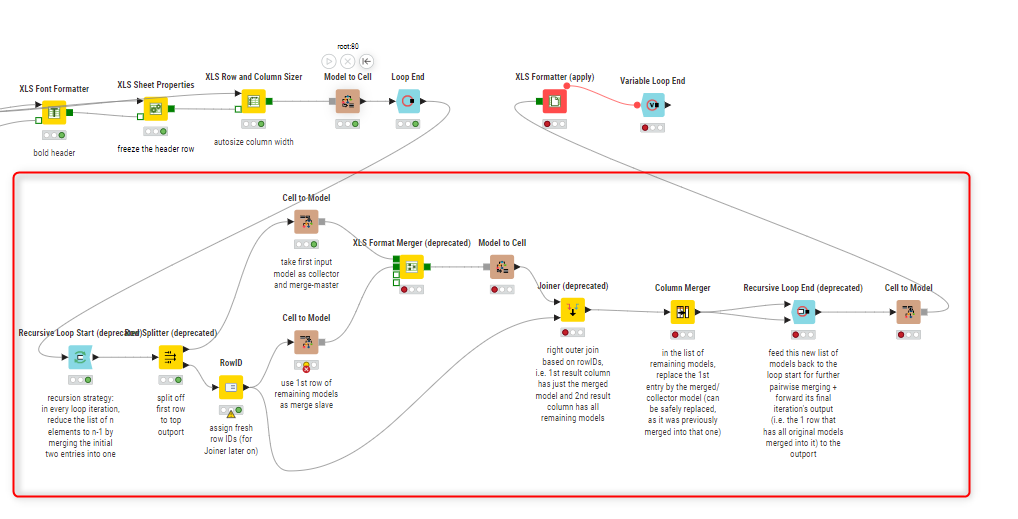
Hi @Xushimin88 , I note that as well as just adding the variable loop end, you changed the inner loop which is now a recursive loop, but I’m not sure why.
It’s quite difficult for people to provide support from just looking at screenshots (even though this is well annotated) because even experienced KNIMErs cannot always second guess the intentions, and as @ActionAndi has mentioned most people on the forum are not KNIME team members, but simply community users of KNIME so are giving their “spare” time to assist.
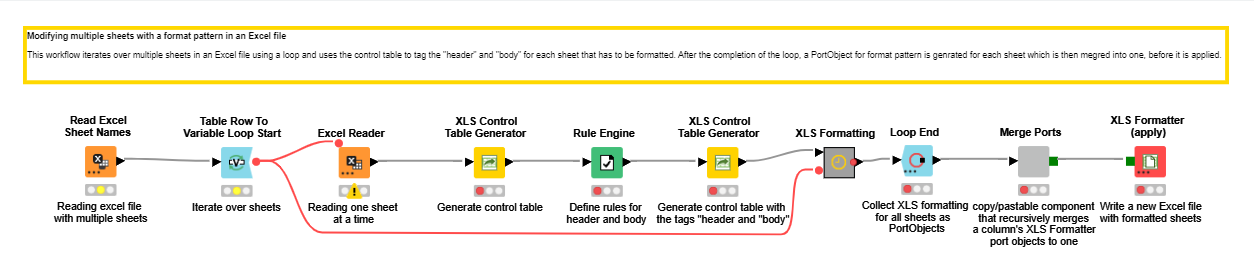
Can I go back to your original screenshot. It is very similar to the the example on the hub, and I suspect possibly used that as a starting point:
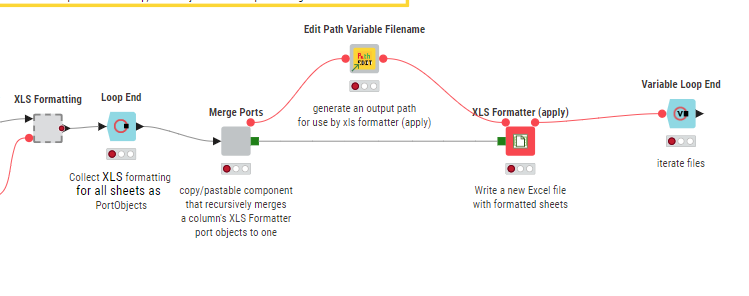
So, rather than write it all myself, I took that and looked to adapt that using your additional loop, plus the variable loop end as rightly suggested by @ActionAndi
So it would go from this (which supports only one file)
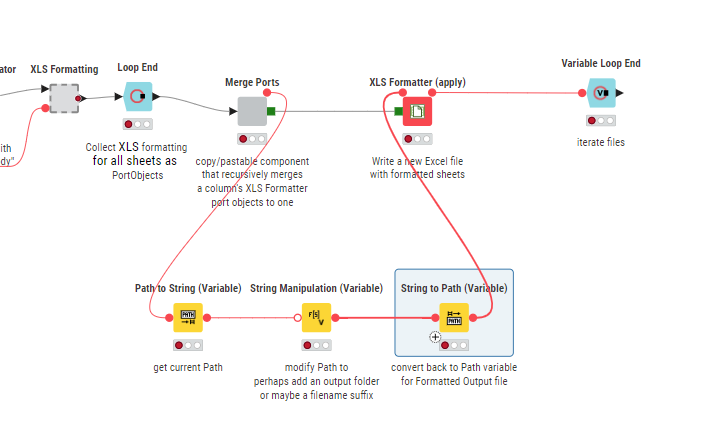
to this, which (almost) supports multiple files:
I say almost because when I looked at that, I could see there was one very important missing ingredient: there was nothing that defined the changing output file in the XLS Formatter(apply) node. So it would be repeatedly writing to the same output file, regardless of the input file.
So you would need to include some additional nodes, such as Path to String (Variable) + String Manipulation (Variable) + String to Path (Variable) to provide a different output file path for each iteration
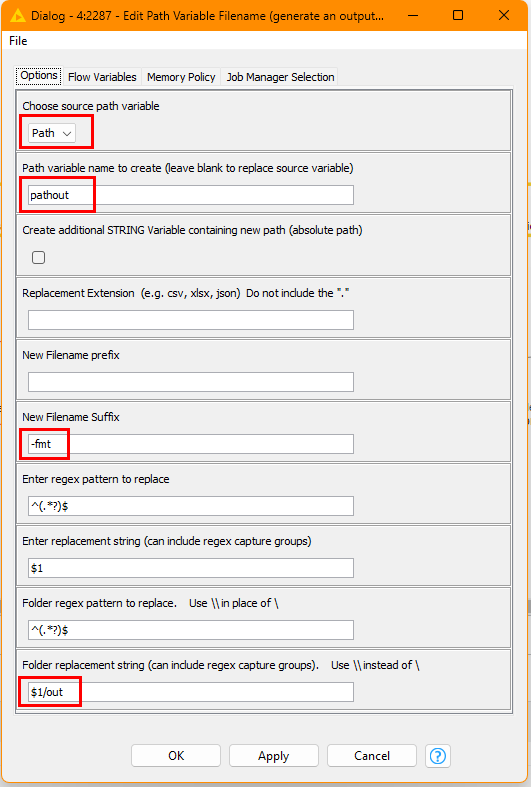
I have a component called Edit Path Variable Filename, that can also help do the same job
In the above configuration, the value in the existing path variable named Path is used to create a new path variable called “pathout”. The current path will be adjusted so that the filename is given an additional suffix of “-fmt” (my abbreviation for formatted) and the output folder will be based on the current input folder, but with the addition of the subfolder “/out”
so if, for example the current xlsx file were:
c:\myfolder\somefile.xlsx
the resultant output file would be:
c:\myfolder\out\somefile-fmt.xlsx
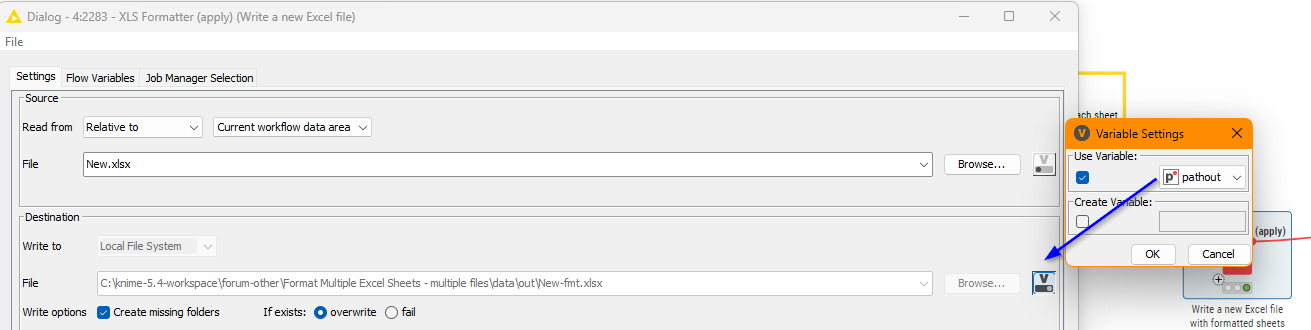
This is then used within XLS Formatter (apply) as the output file:
For reference, this is the previously mentioned workflow from the hub with the above modifications:
Format Multiple Excel Sheets - multiple files.knwf (2.3 MB)