Hi everyone,
When working with larger KNIME workflows, I try to keep things organized by color-coding nodes. I’ve developed a personal scheme, for example:
I’m curious: how do you handle this?
Do you have your own color-coding system or any tips for keeping workflows visually clear and easy to navigate, especially over time?
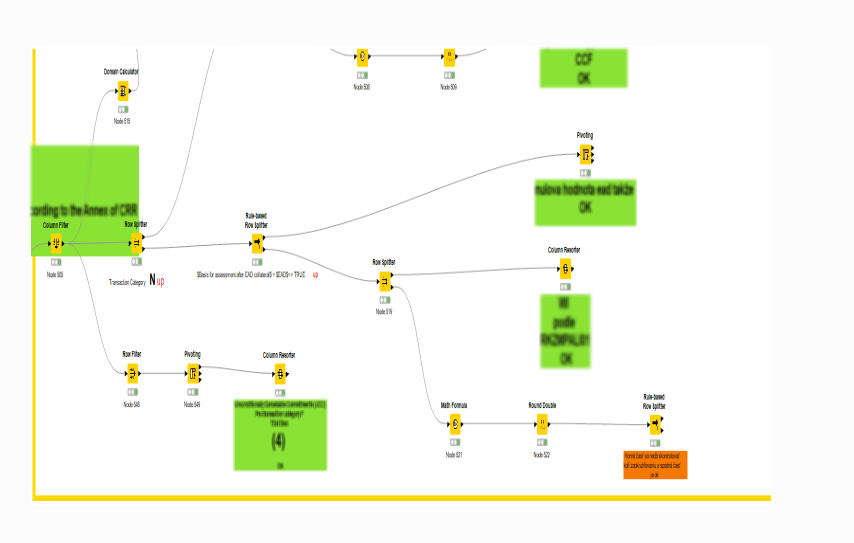
One specific challenge I’m facing is when I have multiple Row Splitter nodes in sequence, because each branch handles a unique logic that can’t be easily merged into a single Rule-based Row Splitter. In these cases, color-coding helps me stay oriented.
Yes, I know there’s the New Comment node, but I find it a bit impractical. When I’m deep in problem-solving mode, I don’t want to be distracted by writing descriptions—I just want to focus on the logic.
Has anyone tackled this kind of issue before?
Any suggestions or links to related discussions would be greatly appreciated!
I’m not sure what you’re trying to do. As far as I know, there’s no way to change the color of Knime nodes without getting into their code. Knime does have a color coding system which makes sense.
Changing it would impair workflow portability. Finally, some of your coding requirements appear to be dynamic. What kind of logic would you use to color code these?
Most Knime nodes provide failure warnings, e.g. trying to perform a math operation on a string and warnings, e.g. node produces an empty table. I don’t know how you could produce a color/warning which notes correct/incorrect output. What criteria would you apply for this?
As rfeigel already pointed out, the Node coloring follow a system:
orange - sources
yellow - manipulating nodes
red - sinks
light blue - loops
In my opinion it’s almost perfectly done and gives a good overview. In combination with the traffic lights at the bottom of each node I think it’s easy to understand.
If you want to setup your coloring it’s maybe helpful to create components, where you can setup the icon and coloring by yourself. Especially if you need to check if the result of a node is correct or not it seems not be doable by just one node. So a bunch is needed and can be summarized then.
I didn’t mean changing the color of the node; that’s fine, I don’t see a problem there.
What I mean is that when I use the node, it runs and its status is green. However, the data is in a state where it is not OK.
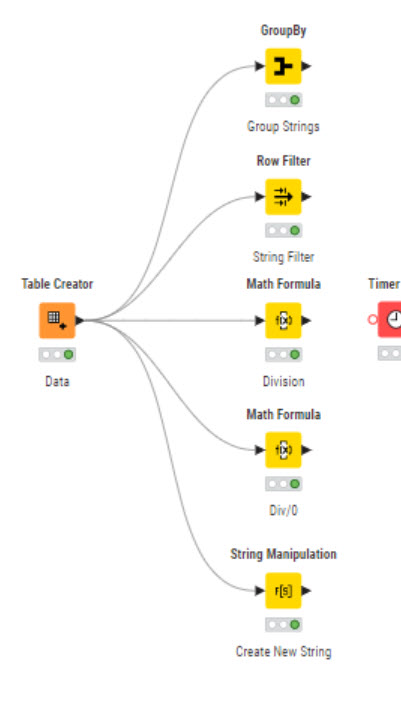
For example, I am currently checking data and I have approximately 500 nodes.
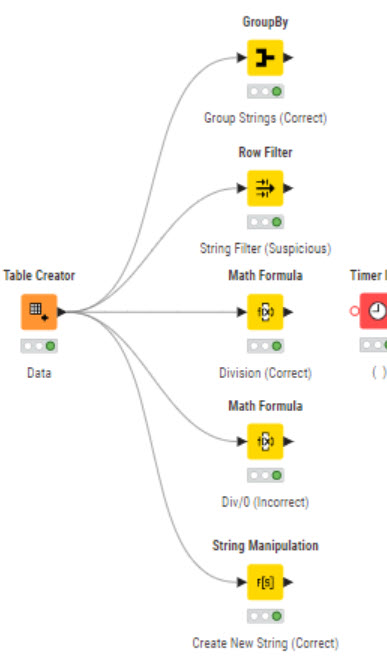
Each of the nodes ran OK, but some of the data is OK and some is not. I mark the nodes that are final and the data in them is OK as green.
Then there are nodes that seem to display suspicious data.
And I need to mark these nodes. Because when I come to the meeting, I don’t want to search through the texts to find what’s wrong, but I can immediately see that the green nodes are OK and the orange ones need to be addressed.
In general this does not work with KNIME out of the box.
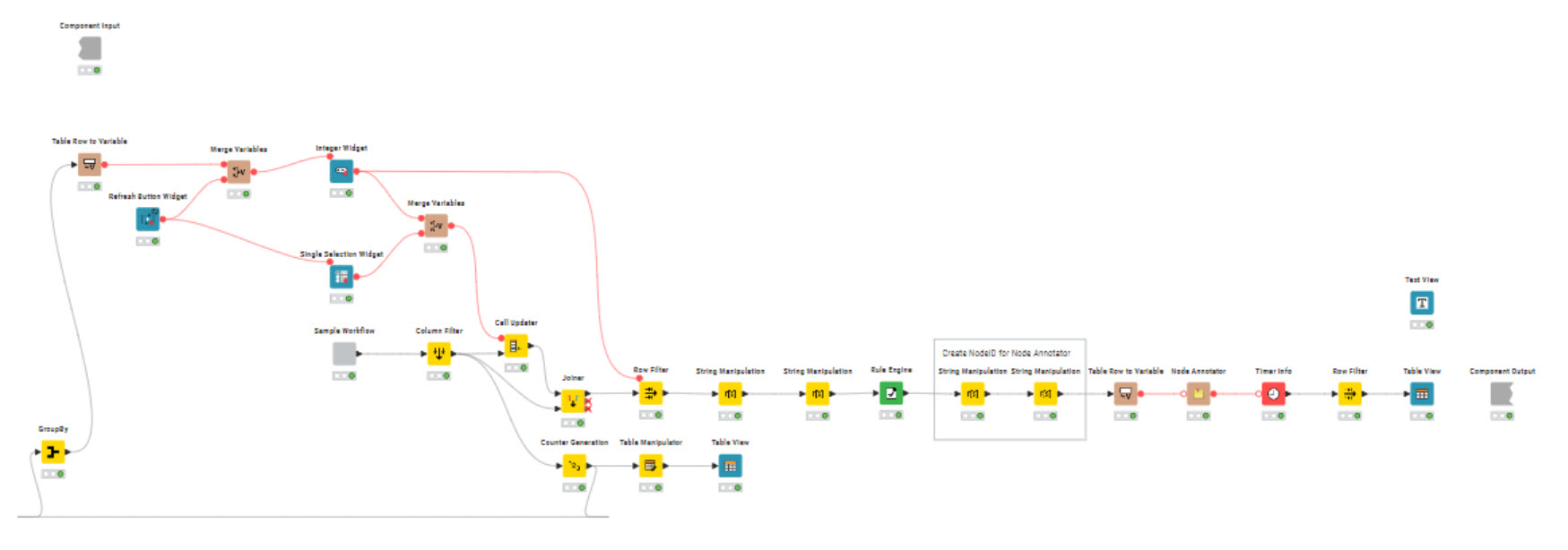
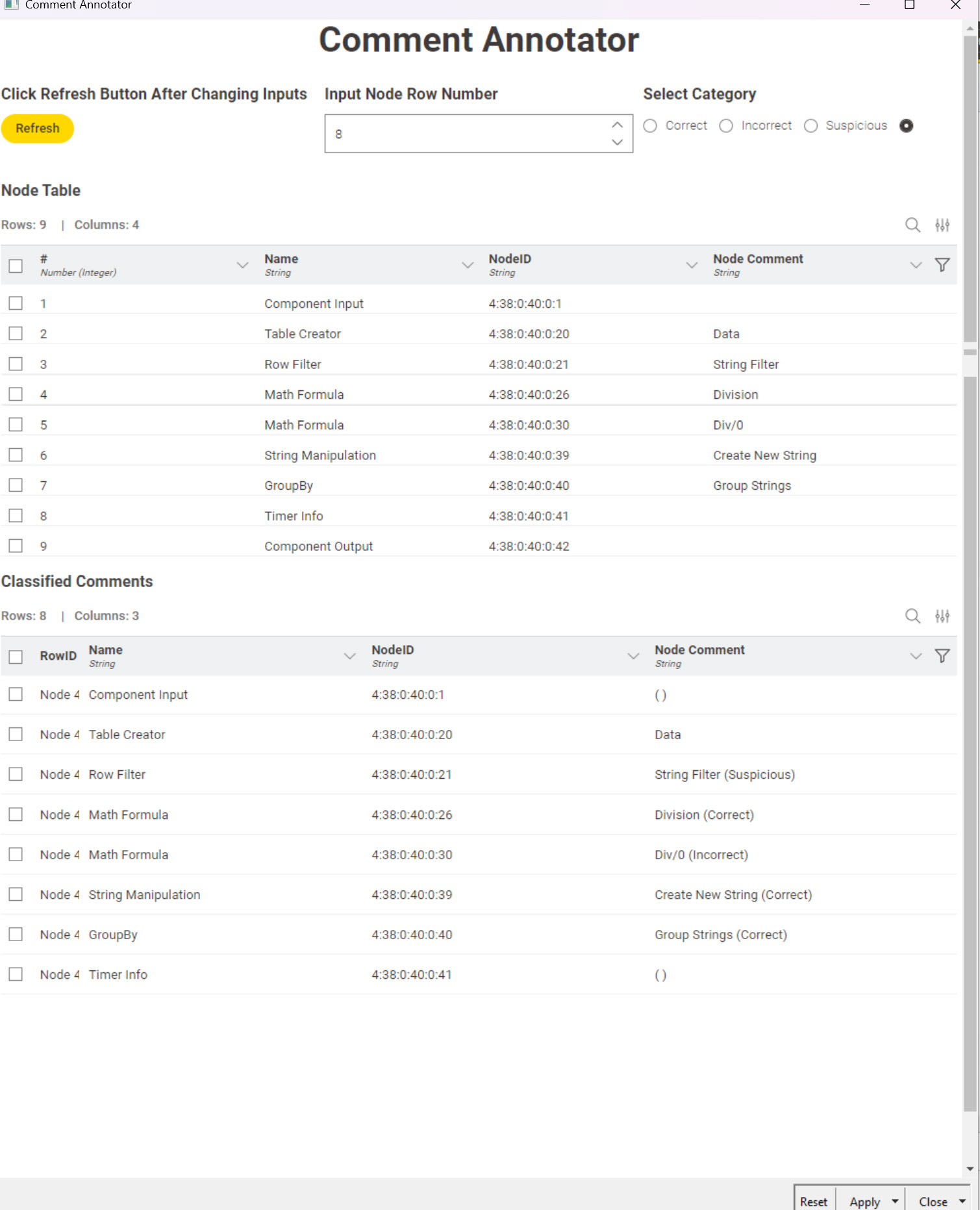
One solution approach could be to use an extension which contains the node annotator:
You then built a logic for those nodes where you want to “quality-check” the data which indicates correct/incorrect data and you then annotate the node with e.g. colorful emojis like for OK and for not OK…
Definitely it is manual inspection. This is like testing of data. Focus on quality of data is concern.
Off course I can open the annotation and change of background color of orange to green but when you have 20 nodes red and than manualy after rerun whole workflow I have to change manually every node single .
Probably shortcuts for change of background text is enought . I do not want rocket science .
This only practical marking of node during analyze .
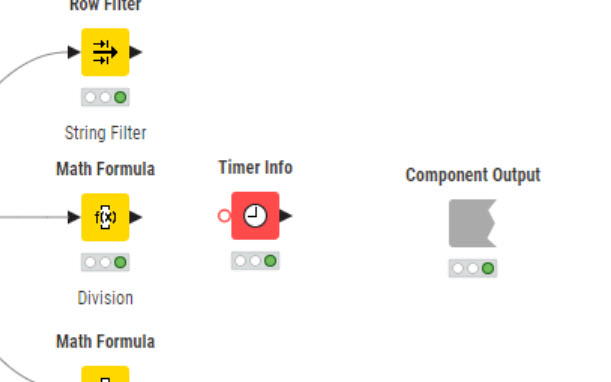
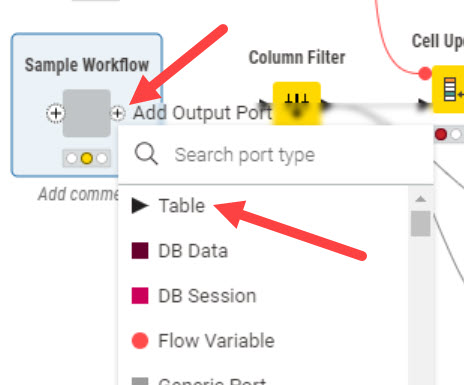
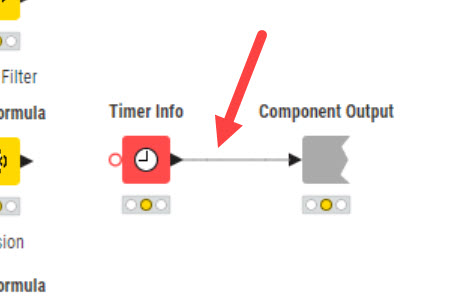
The only tricky part is configuring your workflow component. When you create a component from your workflow make sure to include a Timer Info node inside the component close to the Component Output node because you’ll need to connect them.
The workflow was built in KAP 5.6.1. It will run fine in 5.5.1. You’ll get an error message which you can ignore. Have not tried with other KAP versions. You can find 5.6.1 here:
 Blue – node produced correct results
 Red – node failed or gave incorrect output
 Orange – warning or suspicious output
 Purple – decision-making node (e.g., Rule Engine, Splitter)
 Yellow – informational or helper node
 Green – input data nodes
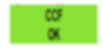
 for OK and
  for not OK…