Hi there,
I just tried running the WF, but unfortunately I do not have access to the said group (OT rant: Every time I dare to log into LinkedIn every half a year, I’m totally horrified by all those screaming red notification bubbles shouting at me what I have missed and I usually run away again quickly).
Never mind, I just switched to a different example group and I got the idea, so straight to your question:
What you should do is to use a cascade of “Find Elements” nodes:
-
On the first level you extract the wrapper element which contains one piece of all the information information (in your case name, connection level, title). Visually (by looking at your screenshot) this is all the information between the a pair of horizontal lines. In case of the LinkedIn page it is represented by the
<li>element. You can also get to this by clicking the “Select” button in the Find Elements node and hovering with your mouse over the browser window:By clicking, you will get a CSS expression pointing to one element. From there on you will need to generalize the expression to cover all of the rows. This involves a bit of trial and error and routine, I just came up with
ul.groups-members-list__results-list liwhich works well. By entering this in your first Find Elements node, you will get a list of all the rows. -
Next, you will want to add several follow-up nodes which extract the desired piece of information (i.e. name, level, title) based on the result from the first Find Elements.
For that, add further Find Elements nodes, and make sure to properly configure the “Find In” setting to not use the Web Driver, but the previously extracted Web Element instead:
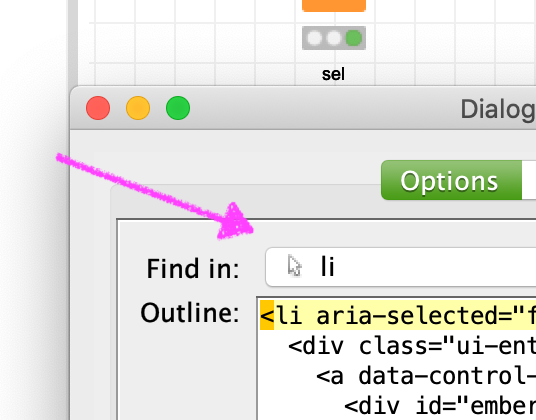
This means, you will be searching within the context of the result previously extracted. For getting e.g. the name of the user, you can use this CSS selector:
.artdeco-entity-lockup__title(fyi: the one automatically generated is too specific, and will not generalize well enough to work for the entire page) -
Follow the same steps as in 2. for the further information.
-
(pro tip): In the latest Selenium Nodes release 4.7 we have turbocharged the “extraction” nodes to include the “Find Elements” functionality. This means, that you can build the entire workflow with just one single “Find Elements”, and for step 2 (and 3 and 4) use just and “Extract Text” node where you enter the proper CSS selector – this means less node clutter, faster execution


Hope this helps!
– Philipp
PS: I have been working on the other WF you sent via Email and will reply to this by beginning next week.