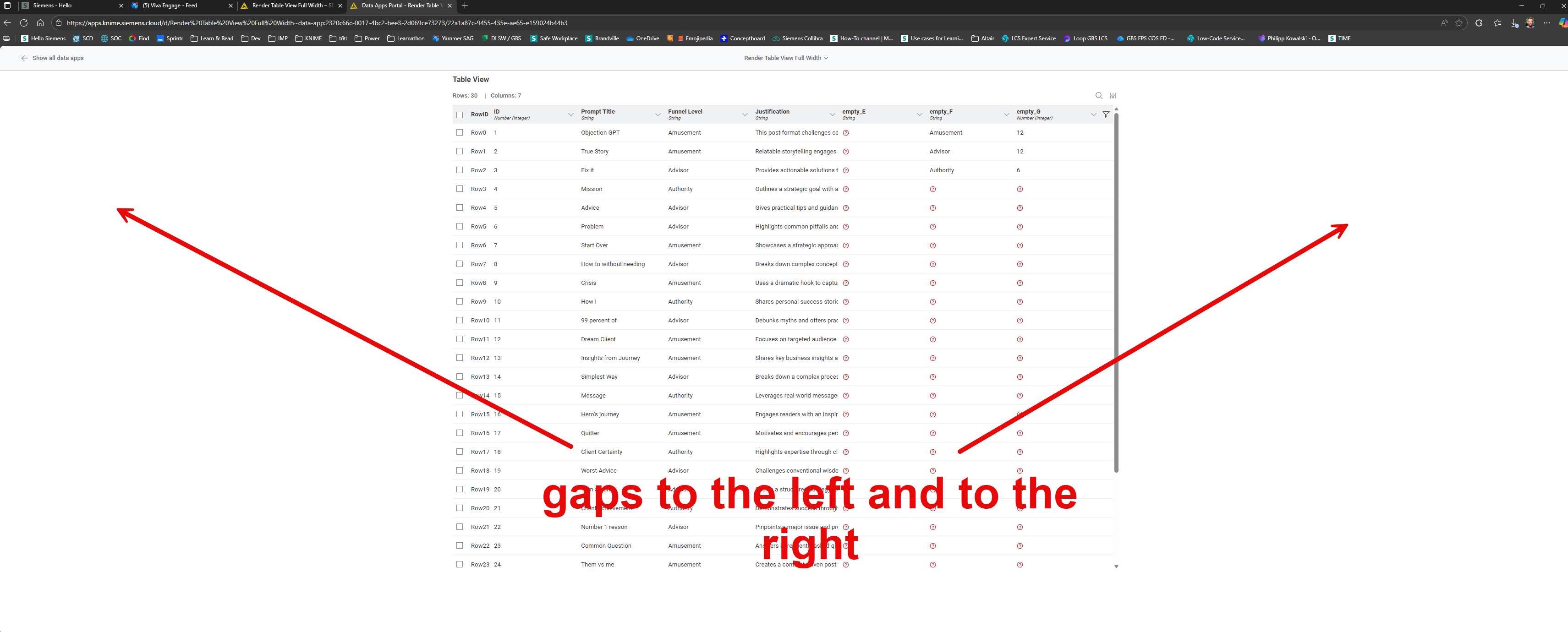
I have created a data app using a component and deployed it on the KNIME Business Hub. However, KNIME seems to - by default - always render in a kind of centralized layout, see screenshot
I played around a bit and came to the conclusion that there seems to be a width limit enforced of about 1600px for the orange container shown in the screenshot below and the blue container then is a part of that ~1450px…
I gave the table below a max width of 3440px and it displays correctly when the component view is opened in KAP - however in Hub (I used Team Plan to run below data app) that doesn’t work - I believe likely due to the “global” restriction of max width 1600px
This seems to be confirmed by an older post by @DanielBog
There seems to be a setting in Webportal theme.css to change this, but it looks like as a “user” you are at the mercy of max width of ~1450px unless someone changes this global setting in the .css (which then applies to all apps deployed on the hub)
thanks for testing this out Marin, I really appreciate that. Probably because of the underlying framework that KNIME Business Hub is using for rendering web apps / data apps.