Hi @Henan ,
So, instead of terminating the workflow, you could actually send an email and let the workflow continue.
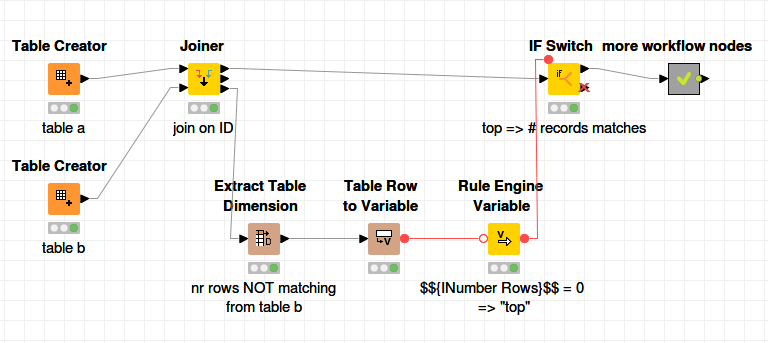
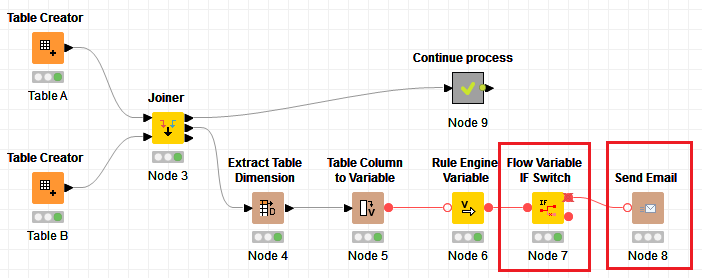
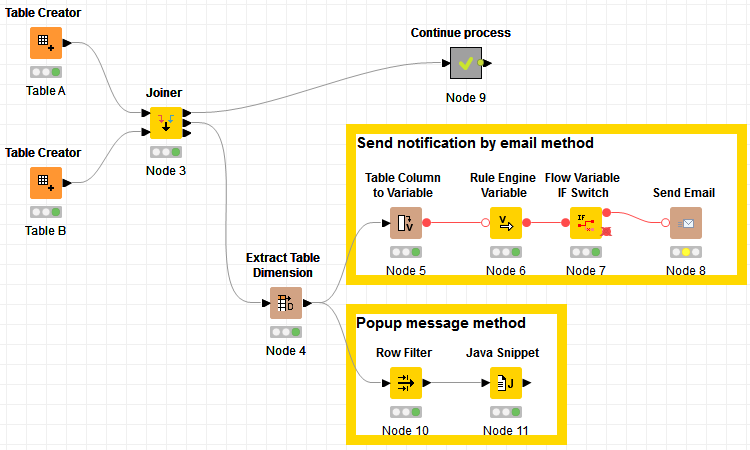
Something like this would work:
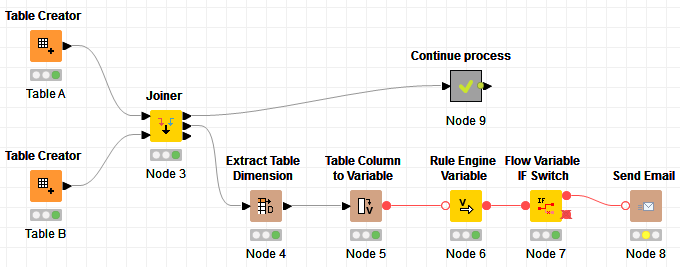
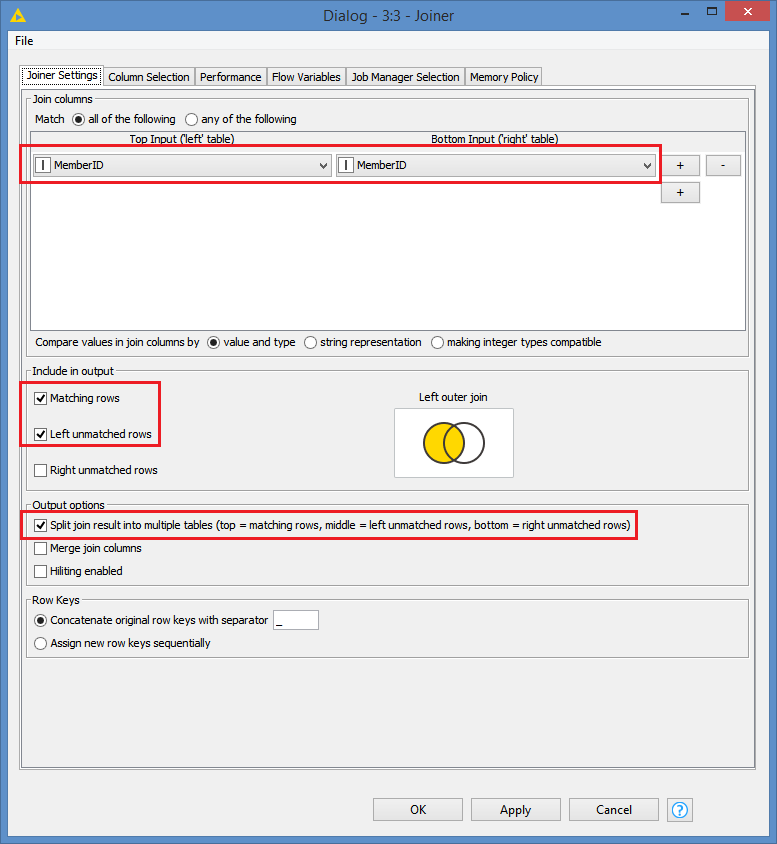
The first thing to configure here is the Joiner node. Make sure what’s highlighted are configured as such:
That way, the 2nd output port will show what records in Table A (Left) are missing in Table B.
The 1st output will contain all the matching records, from which you will be able to continue the workflow.
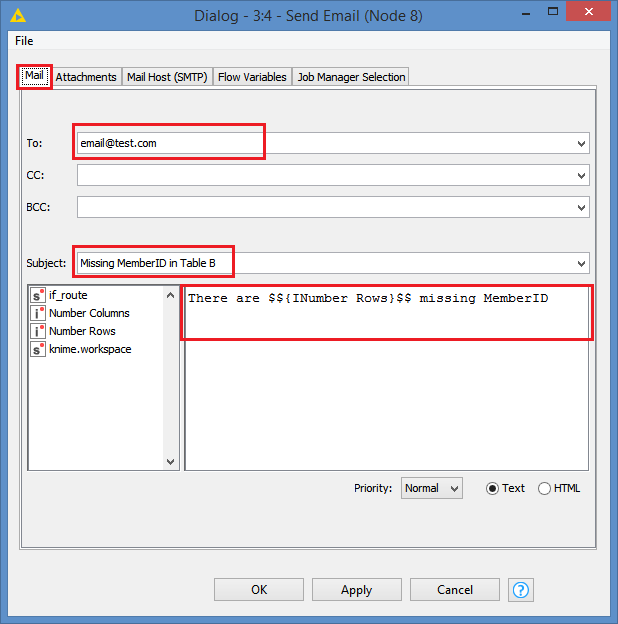
The other thing to configure is the Send Email node. First, the high level configuration (the automatic message):
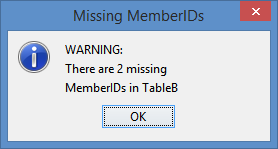
You can enter the recipient email, subject, and even add how many missing MemberIDs from table B you have in the content.
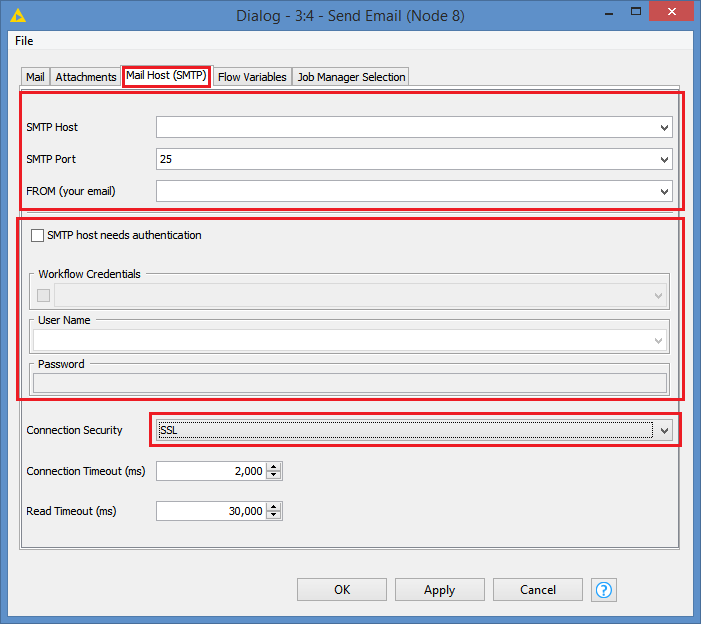
After that, you need to configure the SMTP information, just like you would set up an email client like Outlook, or GMail, etc:
To test the workflow, I start with a scenario where all rows from Table A match in Table B:
Table A:
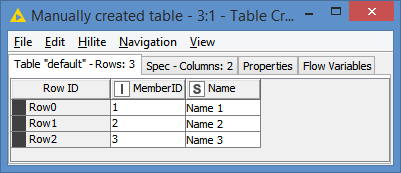
Table B:

Execution of the workflow:
2 things to look at here. You can see that the route from the IF Switch to the Send Email is disabled, and the Send Email node itself has no status, so it’s not run, which is expected since all rows match.
Also, another thing to look at, the “Continue process” (which would be other nodes that you may have to process the data) continues to run.
The next test is where we add new MemberIDs to Table A, but not to Table B. Here is the new Table A:

MemberIDs 4 and 5 have been added to Table A.
Table B remains the same as before.
Execution of the workflow:
We can see that the IF Switch to the Send Email is now enabled, and we can see the Send Email node at the Ready state (yellow) and ready to run (I did not run it cause I’d have to configure it, but the point is that it would run in this case), which is the expected behaviour.
We can also see that the process continued in parallel, which is what you wanted.
Here’s the workflow: Send notification if there are unmatched rows.knwf (21.9 KB)
EDIT: I originally thought that your process was being run as a job, hence why I added the sending of the notification. I just realized that it might not necessarily be the case  , in which case you might not need these extra nodes. All you would need is just this:
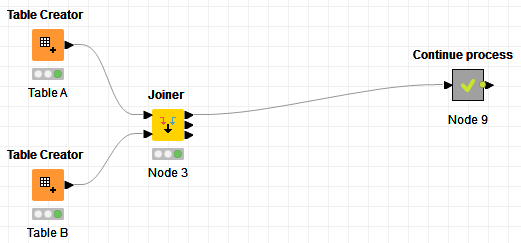
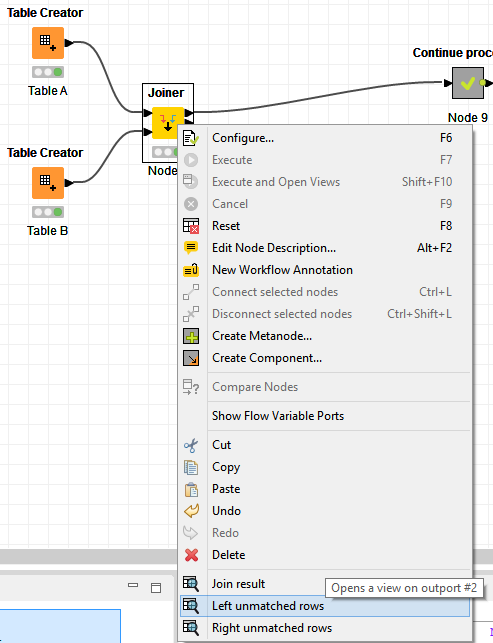
Configure the Joiner as I explained, and simply check the 2nd output port of the Joiner (Right click on the Joiner, click on “Left unmatched rows”):
That will also show you what MemberIDs are missing:

And if you are afraid you might forget to check that port, you can leave one of the nodes there, which is the Extract Table Dimension:
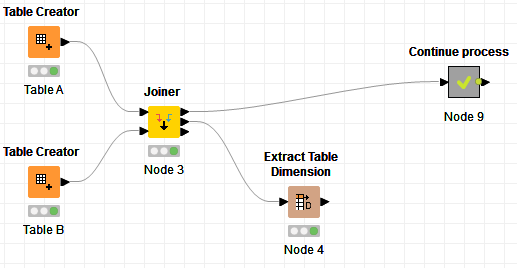
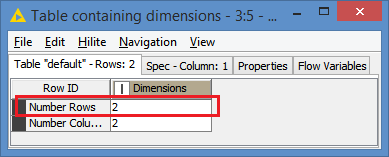
You’ll just need to check the “Number Rows” row to see if it’s 0 or greater than 0. If it’s 0, then it means all rows in Table A matched in Table B. It basically shows the number of MemberIDs from Table A that did NOT match in Table B:


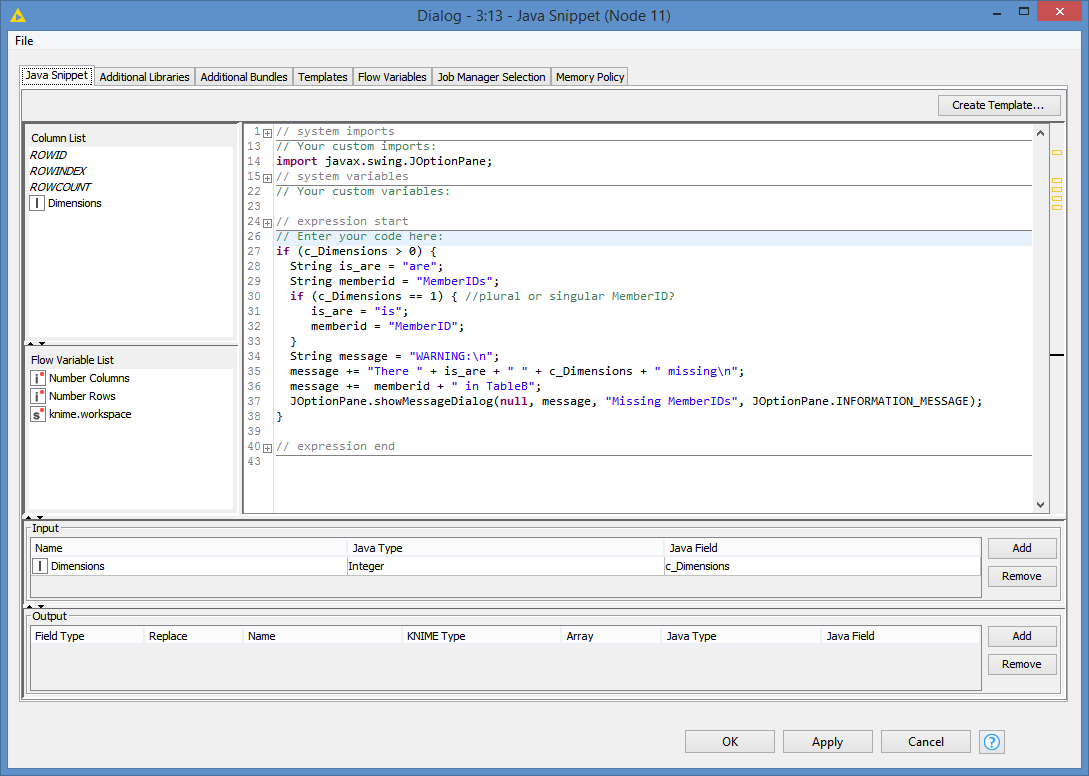

 . If you wanted it to stop, I would have implemented it so that it would stop.