KNIME Analytics Platform 5.5.2 (Windows 11, fully updated as of 2025-10-22)
Summary
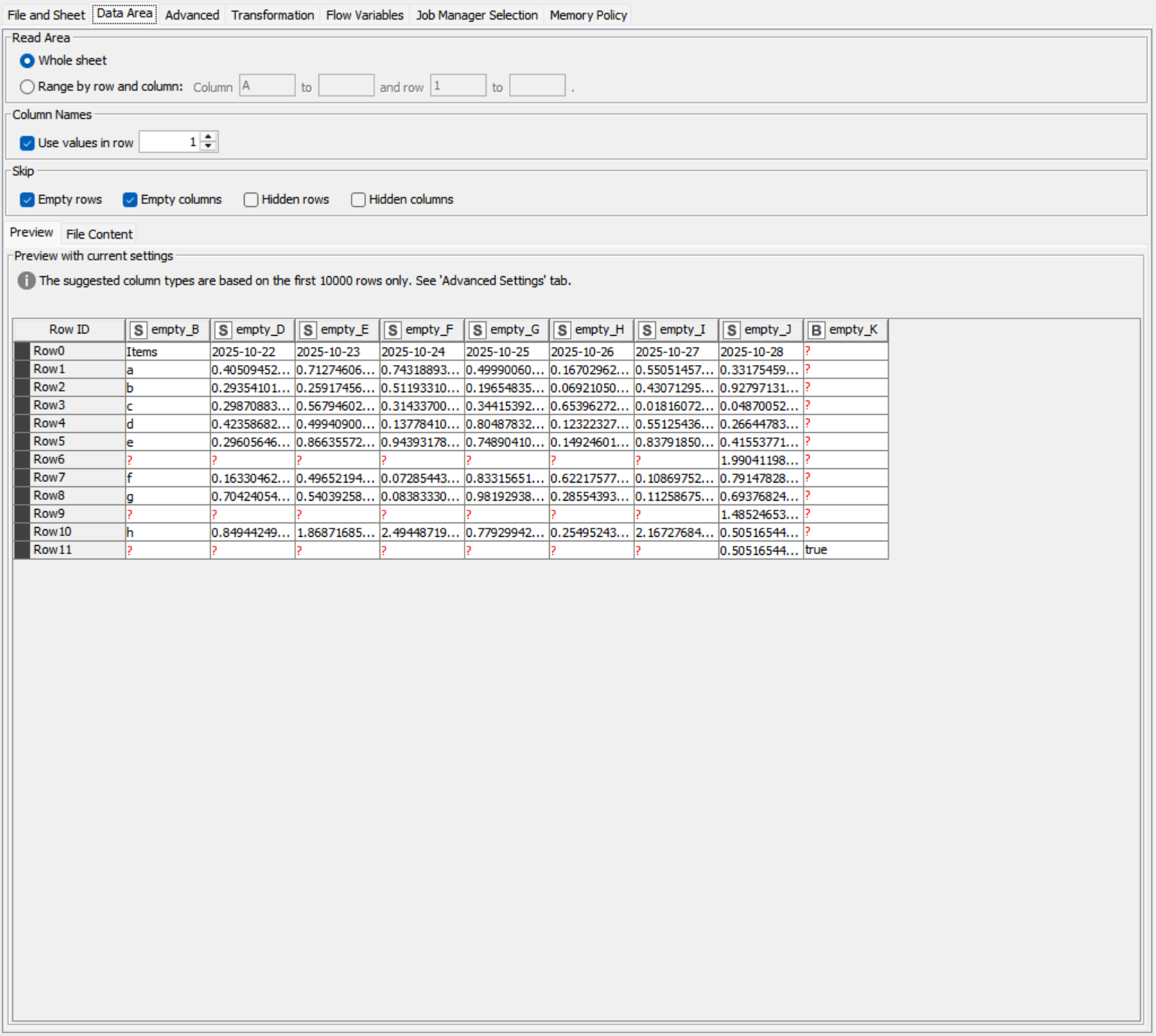
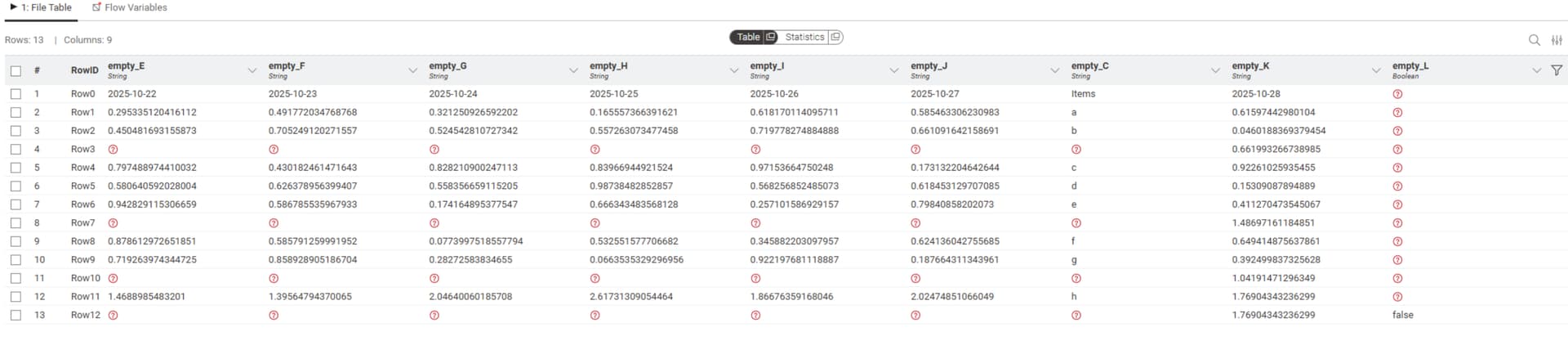
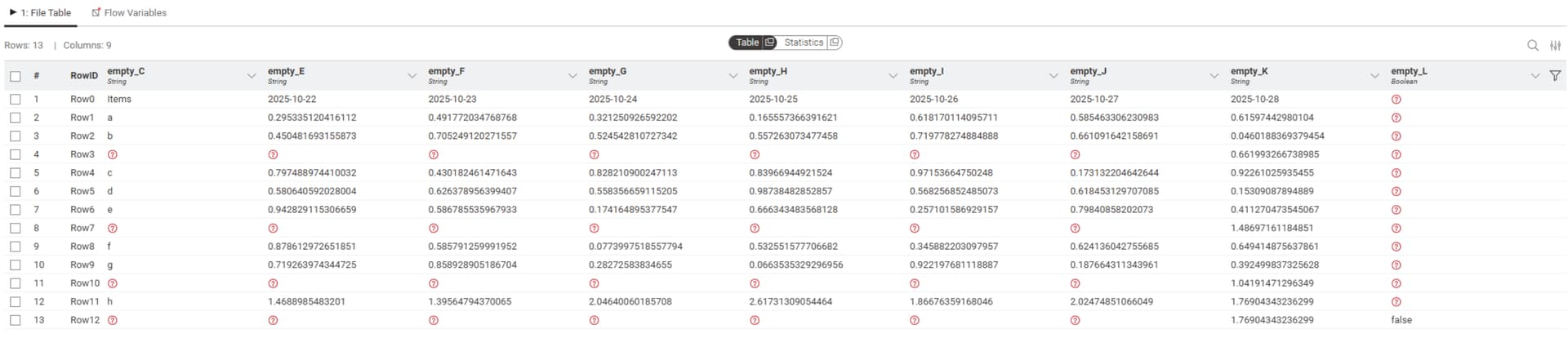
When an Excel Reader node is copy-pasted and the file path is changed to an XLSX with a similar schema, some columns are appended to the end of the table in the preview/output, altering the column order.
This makes date-by-column sheets (e.g., financial statements with months across columns) appear as if months are missing.
Step to reproduce
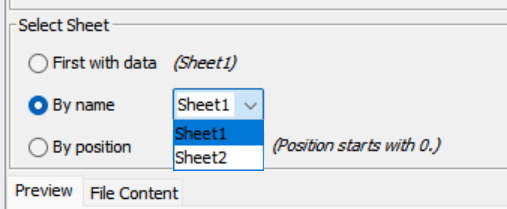
Create an Excel Reader node by drag-and-dropping an Excel file into KNIME.
There is an option in excel reader’s configuration settings which lets you change what happens if the data schema changes, if you can change it from fail to new schema that would be all right –>
By the way, in my humble opinion default option is really useful for me because when a “genius” wants to create a new column for the same file that’s been following the same schema for the last 2000 years, KNIME let me run the current flow without any hassle
Thanks for your suggestion. I think this is a separate issue. The workflow does not fail. In fact, I don’t even need to execute it to see that the column order is incorrect. This looks like the parser itself not refreshing completely when the file path is changed by the user.
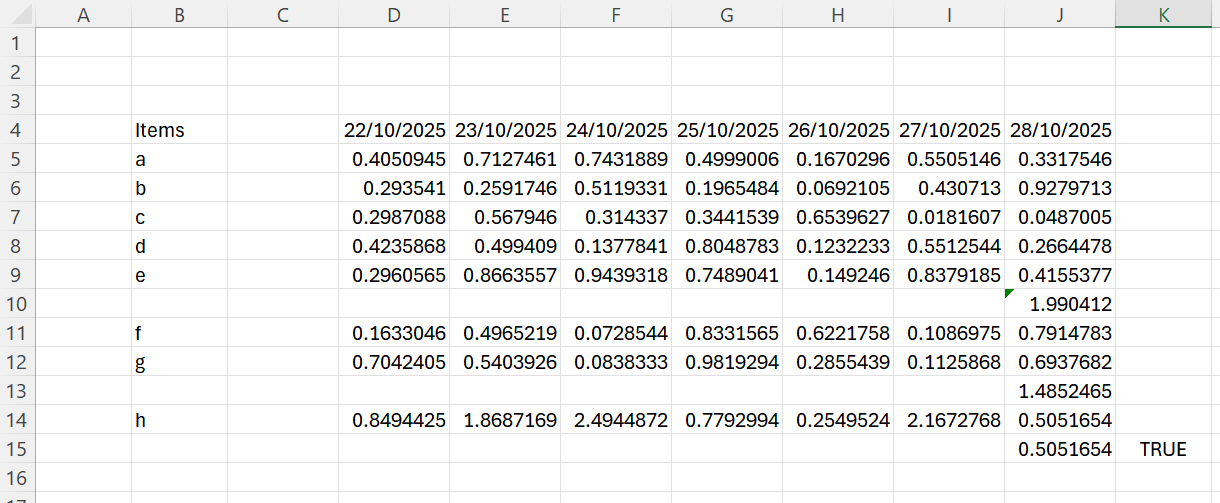
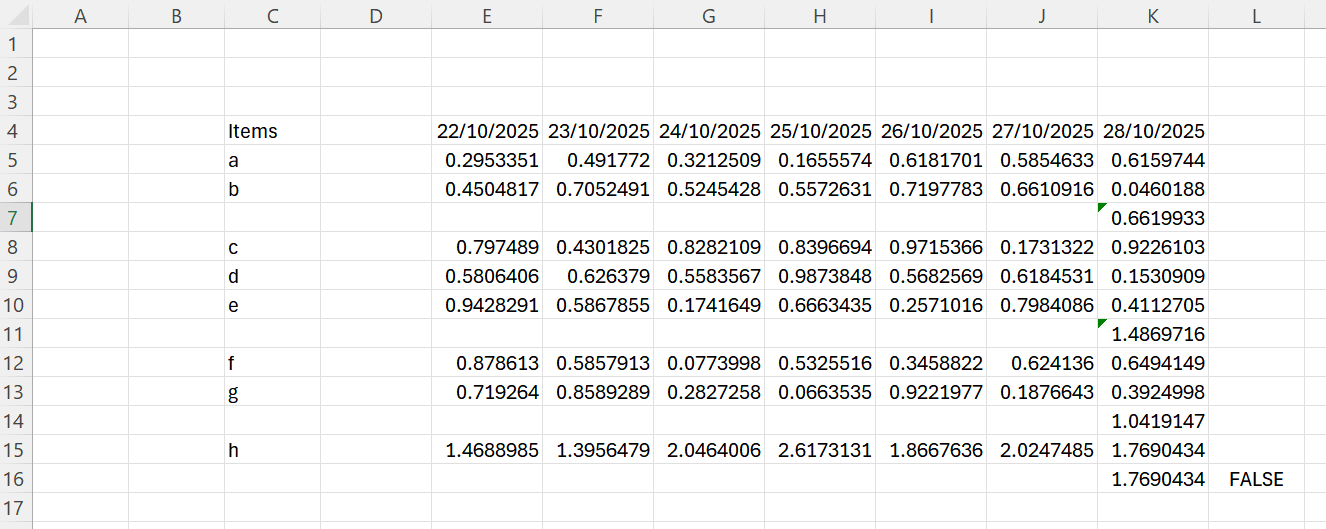
No worries — let me clarify. Based on the files you provided, what I meant is that if you copy an existing Excel Reader node and just change the file path inside, or if the schema changes by adding columns to the original file (as in Excel File A & B, where B has an extra blank column B), KNIME does not update the schema automatically.
And that’s exactly why the “When data schema changes” option exists — it gives you control over how KNIME should behave in such cases, rather than forcing an automatic refresh.
This has happened to me many times while fetching automated files from a public financial institution, where the structure changes frequently. In my opinion, the schema information should remain tied to the original node configuration — if a refresh is needed, it’s better to add a new Excel Reader from scratch. Otherwise, KNIME ends up carrying over the previous schema definition, which can be confusing when testing different files.
Thank you for the clarification. I see what you mean now, and indeed changing the setting resolves the issue.
That said, I find the behavior a bit confusing because the same mechanism seems to handle two distinct situations:
Schema changes independent of user action (e.g., someone adds a column to a file you’ve already imported into KNIME)
Schema changes caused by the user linking a new file
Case #1 feels straightforward, but case #2 could perhaps be handled better. It’s counterintuitive when a node that appears correctly configured imports data incorrectly because it has silently inherited schema properties from the previous file. Since neither the old file nor those inherited properties are visible anywhere in the interface, it understandably feels like a bug.
A simple pop-up could help, for example, alerting the user that the schema has changed and asking whether they’d like to update it to match the new file.
I understand the underlying logic, but as it stands, it’s not something most users could reasonably infer from normal use.
I hope this helps, and thanks again for your time and explanation.
You are right. That kind of warning would be good. Let me tell you about my experience. I often come across these kinds of issues, and I’ve realized that when I stitch them together using a looping mechanism, the problem usually comes from mismatched column names. I created a new file reader loop based on your files Files A & B here with the same excel reader node with default settings–>
Thank you for your reply and makes perfect sense. I would also usually loop through Excel files, which would make this less of an issue, but this time the files were similar enough but occasionally different enough that it was just safer to import them one-by-one and ensure that they map correctly.
I think this may be a bit of a niche case, although it’s most likely that specifically the least advanced users–who are presumably more prone to adding things manually several times instead of looping–are also the ones that would end up running into it.
Thanks again for your comments. A pop-up would be great.